Zazzle Shop

Screen printing
Showing posts with label Wireless. Show all posts

Wednesday, October 26, 2011

AT&T U-verse cuts the coax, goes wireless in-home

From http://gigaom.com/
Pretty soon, new AT&T U-verse subscribers won’t have to go through the hassle of having their entire home re-wired with coaxial cable when they sign up for the pay TV service. Instead, all they’ll need is a residential gateway and a set of thin-client wireless receivers to deliver live and on-demand TV throughout the home.

Starting Oct. 31, U-verse customers can order the new wireless receiver, which can be placed anywhere throughout the home or even outside, as long as it’s within Wi-Fi range. By hooking up the wireless receiver, users will no longer have to connect the TV’s set-top box to a coax connection, meaning they have the flexibility to move TVs around the house or to switch out the wireless receiver to rooms that aren’t used as much.


TVs hooked up to the wireless receivers will get all the same features that are available through more traditional wired set-top boxes, such as access to on-demand titles and whole-home DVR functionality. Subscribers are also able to pause a piece of programming and pick up watching it in any other room in the house.

More importantly, the wireless receiver will reduce the need for AT&T technicians to run coaxial cable throughout subscriber homes. That means an easier set-up process for new subscribers, and could drastically reduce the time it takes to get users set up and ready. Existing customers can also request the new wireless receivers, which they can put around the house thanks to a self-install kit.
The news follows a trend of pay TV operators introducing more IP-enabled services and devices. Verizon and Comcast, for instance, have both announced plans to make their content available through the Microsoft Xbox game console, which AT&T subscribers can already use as a set-top box. Comcast and Time Warner Cable are also building TV apps for connected TVs. And any number of operators — including Comcast, Time Warner Cable, Cablevision, and others have rolled out iPad apps that let users stream live or on-demand videos.

While AT&T has always delivered IP-based TV services, these examples show how it and other service providers can use streaming video to deliver new user experiences to users. While today the wireless streams are being delivered exclusively to U-verse receivers, we can imagine AT&T building apps for connected devices that could alleviate the need for the device. In the meantime, however, AT&T’s new wireless receivers are available for a one-time fee of $49, plus a $7 per month receiver rental fee.
Wednesday, May 25, 2011

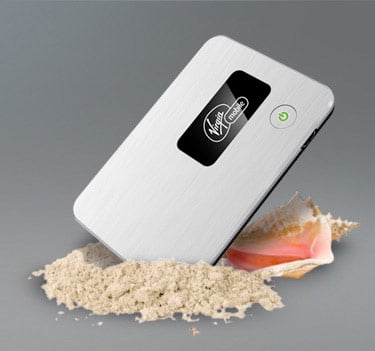
Virgin Mobile USA Marks Return Of $20, Contract-Free WWAN Plan

by Ray Willington
from  http://hothardware.com/

  It's back! No, not the McRib, Virgin Mobile USA's $20 no-contract broadband plan! The company has just announced a new expansion to their Broadband2Go offerings, with the triumphant return of the $20 plan leading the charge. This joins the current $10 and $50 plans, and provides 500MB with one month expiration for $20, offering another option for flexible internet access especially for the occasional user or traveler. Virgin Mobile’s no contract Broadband2Go plans feature 3G speeds and start at just $10 for 10 days/100MB of access. For heavy users the $50 plan offers unlimited data access with 3G speeds up to 2.5GB each month.

For clarity, all of these devices operate on Sprint's network, so you'll need to double-check Sprint coverage near you before buying in. You'll also get a number of device options, all spelled out below. In a world of tie-me-downs, hearing this news feels really refreshing.


Virgin Mobile USA Bolsters Broadband2Go Portfolio with Addition of $20 Monthly No Contract Mobile Plan

WARREN, N.J. – May 19, 2011 – Virgin Mobile USA continues to enhance its affordable, No Contract offerings for mobile broadband with the addition of a $20 plan to its Broadband2Go portfolio. Now available online and at participating retailers, the new plan, an addition to the current $10 and $50 plans, provides 500MB of data with a one-month expiration, offering another option for flexible Internet access, especially for the occasional user or traveler.

“From business travelers to virtual workers to students, consumers use Broadband2Go in different ways,” said Sean Yelle, product manager, Virgin Mobile USA. “We found there are a substantial number of customers who want a monthly plan, but don’t need unlimited data. The addition of our new $20/500MB plan, paired with no annual contracts, provides customers an affordable option for broadband access, allowing them to pay only for the service they need, when they need it.”

Virgin Mobile’s No Contract Broadband2Go plans feature 3G speeds and start at just $10 for 10 days/100MB of access. For heavy users the $50 plan offers unlimited data access with 3G speeds up to 2.5GB each month. Additionally, Walmart customers will still be offered the $20 plan for 1GB of monthly access.

Virgin Mobile offers three different mobile broadband devices, operating on the Sprint Nationwide Network, as part of the Broadband2Go device portfolio:

    * The Ovation™ MC760 USB device, developed in conjunction with Novatel® Wireless (Nasdaq: NVTL), connects to a single personal computer or laptop and is available at retail for $79.99
    * The MiFi® 2200, an Intelligent Mobile Hotspot developed in conjunction with Novatel Wireless, is priced at $149.99 and allows up to five users at a time to connect using a variety of Wi-Fi enabled devices; and,
    * The ZTE PEELTM 3200, a first-of-its-kind device that connects to your iPod Touch® (second and third generations) for access to the Internet, email, music and more –for $99.99. The exclusive broadband plan for the PEEL 3200 offers users 500MB of data for $20/month.

Verizon Kisses Unlimited Data Goodbye

From: http://www.vision2mobile.com/
As promised, much to the chagrin of the bandwidth hog, Verizon Wireless confirmed Thursday that it will do away with its unlimited smartphone data plan sometime this summer. New, tiered plans will replace the $30-per-month unlimited option the carrier offers, according to CFO Fran Shammo, who was commenting on the topic at the Reuters Global Technology Summit.

This is certainly disappointing news to customers who gobble up lots of data, but Shammo said family data plans are likely on the way to make you feel better. Instead of every member of the family paying $30 per month for data, the company will roll out plans that allow families to pay one price that could save them money, much like how many family voice plans operate. Shammo called family data plans a “logical progression." No word yet on pricing.

AT&T did away with unlimited data last fall, so it comes as little surprise that Verizon Wireless would do the same. In fact, the carrier said as much a few months ago. AT&T offers three tiered plans for smartphone data: 200MB/month for $15; 2GB/month for $25; and 4GB for $45, which includes Wi-Fi tethering. We would expect the individual Verizon plans to be in the same ballpark.

Tuesday, November 30, 2010

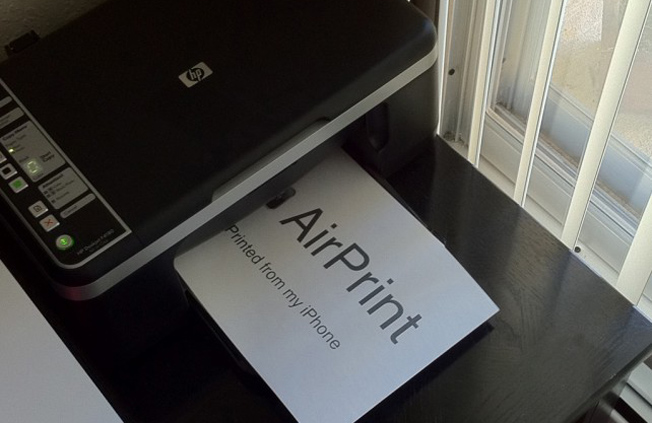
How to use AirPrint with any printer


By: Zach Epstein


Apple’s latest iOS update finally adds AirPrint to iOS devices, bringing wireless printing capabilities to the iPhone, iPad and iPod touch. That’s the good news. The bad news is that in order to use AirPrint, you need a compatible printer. Since very few printers are compatible at this point in time, odds are pretty good that yours isn’t one of them. Don’t worry, though — that’s where hobbyist hackers come in.
If you own a Mac [update for Windows PCs added below] and a printer, you can use AirPrint. In fact, your printer doesn’t even have to be wireless. A simple new hack using an OS X app dubbed AirPrint Hacktivator will enable printing via AirPrint for nearly anyone in a matter of minutes. Hit the jump for a guide that will get you up and running in no time.


1. Download the latest version of AirPrint Hacktivator
2. Unzip the AirPrint Hacktivator to your desktop or Applications folder, then run it
3. Slide the toggle switch in the app to ON, then enter your administrator password when prompted
4. Click OK to confirm
5. Now, go to System Preferences -> Print & Fax
6. Click the minus symbol to remove your printer, then add it back and check the box share it on your network (see video below for instructions)


You’re now ready to use AirPrint from your iPhone, iPad or iPod touch running iOS 4.2 or later. Just remember that your Mac must be on and connected to your network in order for your hacktivated AirPrint to work.

UPDATE: BGR reader Andre just sent us an email to let us know that German blog Macerkopf has an app that will let Windows users hack their PCs to enable AirPrint as well. Check out the translated post for more details and make sure you download the English version of the hack if you want to get in on the action.

Wednesday, February 24, 2010

Best Tech Guy caller EVER with Leo Laporte


Lady calls Leo Laporte's Tech Guy Show claiming her WI-FI access has "disappeared", come to find out that she doesn't even have a router! She's been stealing someones wi-fi for the past year! She even bought a wi-fi extender hoping to get it back. BEST Tech Guy caller EVER. PERIOD.

Friday, October 9, 2009

Hilarious commercial: Powermat "Its f***in' Charging"


powermat wireless charging
"I am not taking any credit for this do not delete this, just for fun"

Friday, August 14, 2009

Americans pay 5 times more than the Dutch for wireless

A new OECD survey highlights the massive disparity in wireless service costs across countries. Americans pay significantly more than their counterparts in Sweden and the Netherlands for mobile broadband.

Americans pay 5 times more than the Dutch for wireless

If you think that your mobile phone bill is out of control, that's apparently because it is. A new Organization for Economic Cooperation and Development (OECD) survey has found that mobile users in the US, Canada, and Spain pay almost five times more for wireless service than their counterparts in the Netherlands, Finland, and Sweden, who pay the least.

More generally, the report nicely ties together a few trends in the telecom industry: texting services have become significant profit centers, and service providers have cut back on equipment spending during the downturn. The striking thing is that, by doing so, they've managed to actually grow profits despite the economic turmoil.

The portions of the report that are available to the public indicate that, across countries, prices ranged from $11 to $53 for a medium usage plan of 780 voice calls, 600 SMS messages, and eight multimedia (MMS) messages. That's a pretty wide range, and North American users are at the top end of it.

As for the reason behind the disparity between US rates and those abroad, the CTIA, a wireless industry trade group, has already released a rebuttal to the report that attributes the disparity to differences in calling patterns.

Since the average US calling profile is nearly three times greater than the OECD's "high usage" basket (and, in fact, the average US calling profile is nearly six times greater than the OECD's "average" usage basket), it is no surprise that most other sources show the price per-call (or price per-MOU) in the United States is the lowest among the OECD countries.

In other words, Americans use way more minutes than customers in other countries, so if you look at the actual per-minute cost, they're lower because the US is buying in bulk, so to speak.

In addition to calls, SMS "continues to be a particularly lucrative market for operators." This news won't come as a shock to governments in either the US or Europe, which have been looking into how wireless carriers price SMS messages for over a year now.

Both AT&T and Verizon recently testified before Congress about their text messaging charges, and the two companies' representatives denied that they colluded to double text messaging prices over the past five years. The reps indicated that their companies were merely responding to Sprint's decision to raise SMS prices, and they also pointed out that the doubling in message pricing only applies to plans that don't include a fixed number of messages for a fee.

The text messaging trend stands in sharp contrast to the cost of voice calls, which the OECD study says have declined by an average of 21 percent for low usage customers, 28 percent for medium usage, and 32 percent for high usage.

The combination of declining voice prices and rising SMS fees fits with the generational change in mobile usage patterns, as younger users prefer text-based forms of communication like SMS and IM. The study notes that many of the carriers are aiming their text messaging packages specifically at younger users.

The report also takes note of a phenomenon that was starkly evident in this latest round of quarterly earnings releases: bandwidth providers across the industry, from Comcast to AT&T, saw profits jump, while network infrastructure makers from Cisco to D-Link saw huge revenue declines.

Clearly, service providers are extracting more money from the use of existing equipment. It's good news for them, but equipment makers are getting whacked for the second time in a decade as infrastructure spending slows dramatically after a period of frenzied investment.

In any case, the report makes it clear that North American carriers have become extremely adept at keeping their income streams growing regardless of what's happening with the larger economy. There may be national differences in usage habits, but the data suggests that service providers would figure out a way to work around them.

Tuesday, July 21, 2009

8 Tips To Effectively Boost Your Wireless Router Signal

By Leon

Look at it – staring you down so innocently, yet I know that your Linksys wireless router refuses to give you signal. Since you decided to place it in a corner to gather dust, using it only for its relay capabilities, it has decided to constantly bring up the feared “Limited Network Connection” bubble. Don’t you just hate those?

These routers have the power to transmit intangible signals; these signals, powerful as they may be, are prone to constant interference whether it be by physical objects, other signals floating around in the air, or even because you didn’t plug the wire in all the way.

Regardless of what the issue, there are some proven ways to try to remedy the situation of a weak Wifi signal. Some may simply be a little bit of common sense, other methods require purchasing additional parts.

Here are 8 tips on how to boost your wireless router signal.

Position it better

Unless you are living in a cave and you somehow miraculously have internet connectivity at the same time, you probably figured out that if your wireless router was in the corner of your kitchen under a pile of old newspapers and your computer was located on the second floor on the opposite side of the house — it is a great idea to place your router in an open position (preferably in the center of your house) where it isn’t obstructed by dense or metallic objects such as file cabinets or brick walls.

Other items that may interfere with your signal include (but are not limited to) microwave ovens, cordless phones, garage door openers, and even baby monitors. The bottom line is that the less objects in the signal’s way, the easier it is for it to relay information to your computer.

Change the WiFi Channel

Generally, Wifi routers transmit their signals on a radio frequency of 2.4 GHz. Many other household objects may operate on or around the same frequency, like cordless phones, for example. So, the channel becomes bogged down over time with lots of excess traffic that slows down your wireless connection. In the U.S., routers have a predefined set of 11 channels, and the default on a lot of them is channel 6. Changing the channel would reduce some interference. So how do you change the channel?

A great utility many people use is called NetStumbler, a wireless networking tool that just so happens to offer the option for you to change your wifi channel. Once opened, the program gives the choice of fooling around with all of your wireless utilities. Here is where you change your channel:

ns1

Which leads to:

netstumb2

Since the default for most people (at least in the United States) is 6, you may want to change your channel to something like say, channel 11. Take note that the changing of your wireless channel will NOT in any way increase your speed or bandwith. It will simply remedy your network connection if it keeps breaking off or getting lost.

Update firmware or drivers

Updates, whether related to the router firmware or your computer’s network adapter are done to fix bugs, smoothen out performance and reliability, and maybe even add new features. It is always a good idea to stay up to date with the latest releases by either of these parties.

Tim suggested using RadarSync to easily automatically update your computer’s drivers at once.

Buy your equipment from the same company

Compatibility can be a big problem, especially for two way transmissions. It may help to purchase your adapter and your router – everything, from the same company. Aside from that, some companies have embedded enhancements that improve speed or signal strength when everything is under the same brand.

Replace your antenna

Most routers come equipped with something called an omnidirectional antenna. This means that the antenna attached to the router broadcasts the signal equally within a certain circular radius. This is great if the router is positioned in the center of a hub where it needs to be able to reach ever corner of a room, but it can prove to be extremely wasteful if your router is in the corner (then again, why would it be there in the first place?). Since the signal is transmitted in a radius, if you place it in a corner, a lot of the transmitted signal is sent into the wall or outside into the open.

That is why you can manually detach your antenna and replace it with a high gain antenna. This focuses its energy to direct the signal in one general direction. Simple enough? You may have to check and see if your router has an external antenna jack/removable antenna.

Replace your wireless adapter

Since this is a two-way transmission, it may not have occured to you that it may not be the router that is the problem, but actually the wireless adapter attached to your computer. If your computer cannot send signals back to the router, the same problem ensues.

What is an adapter? It used to be the card that you inserted into your computer or laptop. These days, most of the adapters are in the form of USB devices. Consider switching to a USB adapter that houses an external antenna, like this one depicted below.

externaladap

This is usually only applicable to desktop computers. If you purchased a laptop that has a built-in adapter, it probably isn’t your adapter because they are usually very high quality installations.

Add an additional Wireless Access Point (WAP) or Repeater

If all else fails, you may need to purchase a repeater or a secondary Wireless Access Point. The consensus among these two options is rather mixed. Constructing a secondary WAP requires the ability to feed an ethernet cable from your primary router to the new access point. There are also cost considerations to be aware of, as WAPs cost more than regular wireless routers. Even so, WAPs have certain flexibilities that normal routers do not have. They can be configured as gateways, bridges, clients or repeaters. But that’s another story. The bottom line is that the WAP is an extension of the original hub in order to extend the distance of the signal. The repeater works the same way.

Here is a tutorial on how to set up the WAP courtesy of Techskillsvideos:

Try weird things

Apparently aluminum foil amplifies reception and transmission. It may or may not work, YMMV.

A little bit of background: You may have seen 802.11b or 802.11g written somewhere on your router – these are merely wireless LAN standards that the particular router adheres to. The main difference between these is that 802.11b has a maximum data transfer rate of 11 Mbps, whereas 802.11g has a much higher 54 Mbps rate.

With that being said, there is no way to improve data transmission or bandwith outside of hardware applications and upgrades. The tips mentioned above are meant to help you solve the problem of an interfered or weak signal. These may or may not work for you, but there is a strong correlation between troubleshooting and success rate.

Have you any other tips to help strengthen a weak signal? Has changing channels made a big difference for you? Tried attaching aluminum foil to your router’s antenna? How did that turn out for you? Share your experiences in the comments!

Tuesday, March 17, 2009

iPhone 3.0 OS Guide: Everything You Need to Know

iPhone 3.0 OS, the next generation operating system for the iPhone, iPod touch, and whatever Apple device comes next. New features, new apps, here you will find all the information you need.

NEW IPHONE OS 3.0 FEATURES

The new iPhone OS 3.0 adds over 100 new features including—at friggin' last—cut and paste.

Copy & Paste text. When you double-tap over text, you will get a "cut, copy, and paste" bubble dialog. Double-tap again and a "paste" bubble will appear if there's anything stored in your clipboard.

This works across applications. You can expand your selection points using your thumbs and, if you accidentally paste something you didn't want to paste, just shake your iPhone to undo it.

Copy & Paste photos. You can also copy and paste photos. Now you will be able to select multiple photos by tapping the action button, copy some of them, and paste them in an email, ready to send.

New Spotlight. iPhone OS 3.0 will allow you to search across the entire information contained in your device, no matter where, as soon as the information is supported it. If an application is written to support the new Spotlight, its data will also be available in the search.

In this screenshot you can see Spotlight bringing results from your address book, maps, your iPod, and apps in your springboard.

Search in Mail, Calendar, and iPod. These Apple applications have specific search interfaces. The search in Mail doesn't support the message content yet, but it supports searching in IMAP servers—that will save a lot of time logging into Gmail.

3G Tethering. This feature will allow you to connect your iPhone 3G to a laptop, to use it as a modem to access the internet. Carriers still have to sign-off on it, and probably charge more for it. None have announced it yet.

Landscape keyboard. Apple has added the landscape keyboard mode to other applications, like Mail, SMS, and Notes.

Multimedia messaging. A big one to send rich content to people without mail-enabled telephones: The new MMS function will allow you to include everything, from images to sound to vcards (no word on video, however.) Personally, I find these usesless having email, but some people seem to want it.

Support for new calendar types. In iPhone OS 3.0 you will be able to subscribe to calendars on the web using two protocols: CalDAV—supported by Google and Yahoo—and subscriptions via the .ics format—which is what Apple uses in iCal.

Improved stocks application. The stocks application now allows you to read related news, so you can enjoy yourself learning about the latest market scandals, stock crashes, and executives getting bonus packages from government aid while their companies sink into hell. Thank you, Apple.

Stereo Bluetooth A2DP audio. You will be able to pair your iPhone 3.0 with a stereo Bluetooth A2DP device, like headphones or speakers.

Note synching with iTunes.

Automatic login in Safari. The new version of Safari will remember login credentials, so you won't need to introduce your username and password again while accessing Scoreland your work intranet.

Shake to shuffle music. If you are in your iPod application, you just need to shake it to start the shuffling mode. Hopefully this will be optional for sports people out there.

Wi-Fi auto-login. In case you have a subscription to a paid hotspot, your iPhone or iPod touch will autolog into it.

Anti-phising. Mobile Safari now can warn you against malicious sites trying to scam you.

Extended parental controls. Adult content filters can now be applied to movies, TV shows, and applications, in addition to web sites and music (porn apps, here we come).


NEW APPLE APPLICATIONS

Apple will include new widgets in the new version of the iPhone operating system:

Voice memo application. Obviously, allows you to record voice or any other sound, so you don't forget any idea or want to play FBI Special Agent Dale Cooper.

Send and receive files. A dedicated application to exchange files between iPhones or iPods touch.


NEW THIRD PARTY APPLICATIONS FEATURES IN IPHONE OS 3.0

The new iPhone OS 3.0 adds 1,000 new APIs to extend the capabilities of new applications.

Peer-to-peer Wi-Fi connectivity. A new API will allow for two iPhones to connect directly—peer-to-peer—via Wi-Fi, without needing any Wi-Fi network.

They will be able to discover each other using Bluetooth, and then start a Wi-Fi connection transparently (we saw this technology at the Mobile World Congress in Barcelona, so you can check the video about how it works here.)

This opens a lot of possibilities. I doubt they will allow you to pass music, but you would probably be able to pass any other information, as well as directly communicating between applications in the two devices. One example: A pets game that allows two dogs to play with each other.

This feature could be combined with push notification, so your iPhone may receive a note from another iPhone, inviting you to play a game one-on-one.

Browse remote content. While the built-in iPod application doesn't allow you to browse songs in other people's iPhones or iPod touch, third-party applications will allow you to do that, according to Apple's Forstall.

Use your iPhone/touch to control peripherals. A new API will let you use your iPhone or iPod touch as a control to your accessories. In this example, the iPhone is being used to equalize the sound in a loudspeaker.

However, the applications are endless. Johnson and Johnson is releasing LifeScan, an app that connects to a glucose monitoring device. The application can even alert other people automatically, in case something is wrong.

Maps inside other applications. New applications will be able to use Maps directly, which is now an API.

Turn-by-turn directions. Developers will also be able to create turn-by-turn applications using the GPS information from the iPhone and combining it with their own maps, without depending on 3G connectivity or Google.

Push notification finally coming. Hopefully this time it will be true. Push notification means that your iPhone OS 3.0 applications will finally be able to receive messages from the intarwebs automagically, so you can have an Instant Message application and have your iPhone vibrate or make a sound when a new message comes in, even if the application is not running.

Voice communication in applications. iPhone 3.0 applications will also be able to access a Voice over IP service. This means that you will be able to chat with other users while playing against them in a game, for example. This won't use the telephone, but the internet over a Wi-Fi connection.

Rumbling. Games—or any other application—will also be able to rumble, like your console joystick.

Audio recording. Audio recording will also be possible from third-party applications using a standardized API, instead of custom workarounds.

Access your music from applications. Future applications will also be able to access the iPhone/iPod music library. This means that applications will be able to play your own music while they run.


NEW FEATURES IN THE APP STORE

The new OS will also offer an enhanced App Store, opening new possibilities for developers and consumers.

• Subcriptions to apps.
• Purchase additional content for apps, like new cities for a city guide application.
• Purchase additional levels for games.

Basically, this will allow developers to sell more things on top of their apps, and to consumers to expand their experience with those apps.

• This will work straight from the applications, so you can purchase new things through the software itself, even while it still goes through the App Store internally.


PRICE

iPhone OS 3.0 will be a free upgrade to all iPhone users, including the first generation (not all features will be supported in the first generation, like Stereo Bluetooth support). iPod touch users will be able to but it for $9.95.

If you dare, you can sign up for the beta here.

Tuesday, February 10, 2009

Wireless Drug Delivery

Wireless Drugs: iStockPhoto

The annoying physical exertion associated with lifting a pill to your mouth and washing it down with a Dixie cup full of H20 could soon be history. Much excitement is building around electronic implants that dispense medicines automatically or via a wireless medical network. According to a team of Australian and US researchers, however, remote Intelligent Drug Delivery Systems (RIDDS) are rife with security issues.

RIDDS devices are implanted under the skin and connected wirelessly to a medical control center where healthcare workers can adjust medication frequency or levels as necessary, based either on direct patient observation or sensor outputs. The technology is being created for patients with physical disabilities, learning difficulties, or who are otherwise unable to give themselves medication.

As with any unproven wireless communications technology, RIDDS are open to various hacking and cracking issues, including eavesdropping, jamming, and tampering. And that’s where the researchers caution RIDDS devices could prove deadly. They claim a hacker might intercept data, steal personal information, or even trigger commands to release medication inappropriately and so harm or kill a patient.

Gulp.

Via: EurekAlert

Wednesday, February 4, 2009

Wireless Chargers Puff Up Their Green Credentials

By Priya Ganapati Email

Intel_wireless

Saving energy usually involves a lengthy checklist: turning off the lights, turning down the heater, changing the light bulbs. But what if you could increase efficiency and convenience at the same time?

This eco–couch potato's dream is about to come true, say the supporters of new wireless power technologies, which they say can eliminate inconvenient power cables and ugly "wall warts," while sipping electricity efficiently and sparingly.

"Everybody's mouth drops when we show our products," says Ron Ferber, CEO of Powermat. "You could have wireless chargers anywhere in your kitchen, hidden in your walls, and can charge multiple devices at high power."

There's just one problem: Until now, wireless chargers (like those used in many electric toothbrushes) have been less efficient than plugged-in power sources, not more. And the companies working on next-gen wireless power have done nothing to substantiate their claims of greater efficiency.

One thing is clear: Charging gadgets wirelessly is a growing trend. Startups such as Powermat, WiTriCity and WildCharge are trying to free users from being tied to their chargers. Palm showed off a wireless charger for its new Pre phone at the Consumer Electronics Show earlier this year. And even Intel has been working on a wireless-charger research project for the past two years.

Unlike the monolithic, plugged-in wall charger, wireless chargers for electronic devices promise to make it easy to separate the gadgets from their power sources. The chargers come in two parts: a charging surface that can be plugged discreetly into a power outlet, and a receiver that goes on the back of the device you want to charge. The charging surface conducts the power through those receivers to the electronic devices that are dropped onto it. This combination allows for the charging surface to be hidden — sometimes as far away as another room — creating the illusion of gadgets that recharge themselves.

"It is the wave of the future," says Sara Bradford, principal analyst at research and consulting firm Frost & Sullivan.

Wireless chargers broadly use two principles familiar to those who took high-school physics: electromagnetic induction and magnetic resonance.

Electromagnetic induction is one of the fundamental principles of physics. It describes how an electric current passing through a coil of wire creates a magnetic field. Place a second coil of wire in that magnetic field, and either move that coil or change the electric current in the first. This induces a current in the second wire. Electricity has been effectively transfered from one wire to the other, paving the way for wireless transmission.

In the case of magnetic resonance, two coils tuned to the same frequency exchange energy strongly and can do so over longer distances than with simple magnetic induction.

These ideas aren't new. Physicist Nikola Tesla offered theories on wireless power transmission in the late 1800s. But concerns about power efficiency and loss have kept the products from going mainstream.

"The power and efficiency of these devices has been quite low," says Bradford. "They capture only about 60 percent of the power to begin with and then convert it to DC, so there's a significant loss to deal with."

Compare that to cellphone-battery chargers today, which boast an average efficiency of at least 80 percent, says Chris Calwell, director of policy and research at Ecos Consulting, a firm that helps companies reduce their energy use.

To better understand how that's possible, consider how efficiency is measured in a traditional, plugged-in battery-charging system. Each system consists of three parts. The first is a power conversion unit that takes the high-voltage AC current from the wall and converts it to low-voltage DC for the gadget — where efficiencies can be as high as 80 percent.

The second step is the battery-charging circuitry, where losses are very little, says Calwell. Finally, the battery's own efficiency is a measure of how much output it delivers relative to the amount of power put into it. Overall efficiency is measured by taking the efficiency of each part of the system into account: Multiply the three percentages, and you might come up with a lower number than you'd expect.

In case of wireless chargers, proponents claim they are no less inefficient than their plugged-in peers.

"People's intuition is that wireless powers must lose a lot of energy," says Josh Smith, an Intel researcher. "But the discrepancy is not as big as your intuition may suggest."

Take those claims with a grain of salt, says Calwell. There are no standard energy ratings for wireless chargers yet, and no independent tests have been run on the chargers.

The startups behind the wireless chargers are keeping their cards close to their chest. Instead of offering details on how efficiency is being measured, the companies would rather use platitudes on having the right technology to extract greater efficiency despite cutting the cord.

Powermat's Ferber, whose wireless-charging products made their debut at CES starts answering questions about the energy efficiency of his products by saying, "I could tell you, but I would have to kill you."

Press for details, and he says, "We are using multiple technologies today to eliminate the biggest issues with wireless charges related to slow charging and low efficiency."

If that strikes you as banal or secretive, it is clearly the idea. All Ferber will say is his products offer "more than 90 percent efficiency".

Ecos' Calwell is skeptical about that statement. "I am dubious of that kind of efficiency claims," he says. Without any details of how the efficiency is being calculated, the 90 percent figure doesn't mean much, agrees Frost & Sullivan's Bradford.

Eric Giler, CEO of WiTriCity, a startup spun out of MIT's engineering school, is more circumspect in his claims. Giler says his company's wireless chargers can rival their plugged-in counterparts, though so far his wireless chargers have shown power of efficiency just about 50 percent. (In contrast to Calwell, Giler says plugged-in chargers he's tested are less than 50 percent efficient.)

WiTriCity's selling point, though, is the convenience. The company uses highly coupled magnetic resonance to create wireless chargers that can power cellphones and notebooks over a distance of up to 7 feet. "You will never have to reach into your pocket or purse to find the charger or even a charging mat again," says Giler.

Researchers at Intel have also been working to create a viable wireless charger. At the company's Seattle Lab, researchers have been working on a project called Wireless Resonant Energy Link or WREL (pronounced whirl).

"We have been focusing it on the products that are most important to Intel, basically laptop computers," says Smith.

At its conference for developers last year, Intel demonstrated wireless transfer of 60 watts of power at 75 percent efficiency over a distance of less than 5 feet.

These wireless efficiency claims may seem all right, except they are probably just one part of the overall system. What companies may be touting is just the transmitter-to-receiver efficiency, says Calwell.

"If you add up all the other parts," he says, such as the AC-to-DC converter and the battery itself, "then there is very likely to be significant degradation." That's a more serious problem for a wireless system whose transmission efficiency is only 60 or 75 percent than it is for a wired system where transmission can be as efficient as 80 or 90 percent.

Wireless-charger makers, meanwhile, are pressing their green credentials. Their chargers, they say, cuts standby power losses — the power drawn by the charger even when there is no battery attached. Also, the ability to charge multiple devices through one charging station means the technology potentially eliminates losses from having many different chargers plugged in.

"That's ultimately what we see as our No. 1 benefit," says Powermat's Ferber. "If you are into energy conservation and the green movement, there are obviously significant efficiencies you have here."

Calwell is more skeptical of these claims. "There are laws of physics that can't be changed," he says.

There's only one way to settle the debate. It is time for wireless charger makers to come clean with their efficiency metrics. Only then will we be able to tell whether this technology truly lets gadget lovers have convenience and eco-friendliness at the same time.

Photo: Intel Wireless Power Demo/Intel

Monday, January 19, 2009

How To: Add Wi-Fi To Your Xbox 360 Smartly and Cheaply

The Xbox 360 is the best console you can buy. Except it's inexplicably missing something the Wii and PS3 have: Wi-Fi. You could buy Microsoft's $90 dongle. Or you could follow our guide.

The Xbox 360's lack of Wi-Fi is a totally killer hardware flaw—if you're not right on top of your router, you've either gotta string miles of ethernet cable or buy that pricey ass dongle from Microsoft. Unless you check out one of the cheaper alternatives. Here's every major way to get your Xbox going on Wi-Fi, sorted by easiest to hardest (but most satisfying).


Donglage
Dongles are, by far, the easiest way to get your Xbox 360 on a wireless network. But they also tend to be the priciest.

Microsoft's official wireless adapter is $87, which is absolute horseshit for a Wi-Fi antenna attached to a USB cable. But it looks the nicest and is super easy to use—just plug and play. Update: This weekend you can get one for $69.

• The next stop is a third-party wireless adapter, where you've got your pick from Linksys ($65), Belkin ($70) and hey, Linksys ($90, but it's 802.11n). Same deal, plug and play.

• Finally, your cheapest option is from...Microsoft. Turns out, a regular Xbox wireless adapter (which is a supercheap $50), works just fine, with a tiny bit of finagling: Don't put in its actual install CD. Just plug it in, and set your encryption. It might take two tries to get it to work, but it will. And, it won't eat up a USB port like the official Xbox 360 one. Spoiler alert: This is our pick for best option, based on its combo of cheapness and convenience, if you can find one.

Share Your Computer's Connection
Sharing your computer's connection is the cheapest option—it's actually the freest one. It'll work with a laptop or desktop, though a laptop is more truly wireless—the desktop bit is an option if your router's just a step too far out of the way. Basically, you're plugging your Xbox into the computer's ethernet port, and then having it use your computer's wireless connection to connect to the internet.

Windows
It's actually harder to reliably share the internet love on Windows with its cousin, the Xbox 360, than it is on a Mac: No method worked reliably for us across multiple Windows computers. But here's how it should work:

1. Share your computer's wireless connection. Microsoft actually details the process here, and it's pretty easy. From the Network and Sharing center, click on the manage network connections option on the left. From there, right click on the connect you wanna share (probably wireless, unless you're daisy-chaining 'cause your box just won't reach) and hit properties. Under the sharing tab, just check the box to allow that connection to be shared. Plug your Xbox into the ethernet port.

2. There are a few other ways to proceed at this point, and you're probably going to have try at least a couple of them to find one that'll work. You could bridge the two connections (dicey), or you could manually assign the ethernet port an IP address, detailed here (PDF). This Instructable relies on automagicalness to resolve the settings, and I have had that work in the past, though not when I was sorting through methods for this how to.

All in all, expect to do some Googling and troubleshooting if you go the Windows route.

Mac
You'd think this would be easy, 'cause I heard somewhere that Macs just work, and internet sharing on Macs typically ain't hard, but there is a tiny bit of jujitsu involved here. This method, from Joystiq, is the most reliable one I used.

1. On your Mac, pop open Terminal, and type "ifconfig en0" (number zero, no quotes). A whole bunch of crap will pop up. Find where it says "inet 192.xxx.x.xxx" (it should be 192, anyway). Write that junk down. It will probably be 192.168.2.1, like mine. Also find out your router's IP address, which is most likely 192.168.1.1 (Linksys) or 192.168.0.1 (D-Link uses this), depending on your manufacturer. If you have Apple's Airport gear, the router will be at 10.0.1.1.

2. Then plug your Xbox 360 into your Mac, open up Sharing in Preferences. Turn on internet sharing, and share your Airport's internet connection with ethernet.

3. On the Xbox, flip to your network settings (under system settings), and enter the IP address you got from the terminal freaky deaky earlier but + 1, like 192.168.2.2 to my original 192.168.2.1. Subnet should be 255.255.255.0, and then set your gateway as the ifconfig number, 192.168.2.1. Under DNS (back one screen, then down), put in your router's actual address for both. Test your Xbox Live connection. Your NAT might suck, but you can get on Xbox Live.

Hack Your Router
This method is the least straightforward, and requires a little bit of work on your part. Essentially, you're buying a second router (a cheap one, for about $40) and installing custom software on it that turns it into a giant wireless antenna that's hooked up to your Xbox 360.

There are tons of Linux custom firmwares for routers nowadays, with DD-WRT and Tomato being the most popular. Tomato is a bit more user friendly, but it works with far fewer routers than DD-WRT. DD-WRT works with dozens of different routers (click for the list).

Whichever firmware you go with, the method for putting on your router will vary from device to device, with Buffalo routers being a notorious pain in the ass. Tomato includes instructions with the firmware download—but here are some of the details, and Lifehacker's complete guide to installing and using Tomato.

DD-WRT is my preferred firmware. Here are the detailed install instructions, but with most Linksys routers, you can just drill into the router settings from the web address (192.168.1.1) and upload the DD-WRT firmware, directly, making it pretty easy. But some routers require different, exceptionally specific install methods. So check out the list before you run out to Best Buy or Circuit City.

My preferred router for this because of its tininess and cheapness (under $40), was the Buffalo G-125, which required you to flash it over TFTP backdoor the DD-WRT firmware onto it during a brief window of time, like Luke dropping those bombs into the Death Star's vent shaft. It's a pain in the ass, but everything else about the Buffalo routers make it worth it. Unfortunately, you can't buy it in the States until the next month or so, so your cheapest bet is is Linksys's $40ish WRT54G, which unfortunately, has different install methods depending on the revision. The DD-WRT wiki is very good, so you shouldn't run into problems following it.

Once you get either firmware installed, you're going to set your hacked router up as a wireless client.

1. You're going to need to go into the hacked router's settings. Set the hacked router to client mode.

2. These numbers are going to vary slightly based on your router, but you need to assign it an IP address—if your main router's IP address is 192.168.0.1, set your hacked router at 192.168.0.2 or 192.168.0.101 (a number that's in your main router's DHCP server range). Then make the gateway and DNS the same IP address as your main router.

3. When it reboots you're gonna have to re-login to whatever IP address your hacked router is. Do that, go back in, and give the hacked router the same SSID (name) as your main router (Linksys, gizrox, whatever you have it named). You can also configure wireless security at this point, though for me, it's always been kind of flaky, WEP in particular, so you might have to play around to see what works.

4. To test, try to get online using the hacked router as your internet connection, with all of your computer's IP settings left on automatic. If it works, plug the hacked router into your Xbox. If not, check out the DD-WRT wiki for more halpz.

4. On your Xbox, you can leave everything set to automatic—the hacked router does all the work.

The hacked router method might take the longest, but at least you won't have a useless dongle when the Xbox 720 comes out, you'll have a full-featured router, and it's cheaper than the official dongle. Plus you'll have a feeling of accomplishment that will carry over to gaming, so you should kill a lot more people in Call of Duty.