Zazzle Shop

Screen printing
Showing posts with label video codecs. Show all posts

Monday, March 14, 2011

Five Excellent (Yet Free) Video Converters For Your iPhone And iPod

By Umar Anjum

From: http://www.smashingapps.com/

Smashing Apps has been featured at Wordpress Showcase. If you like Smashing Apps and would like to share your love with us so you can click here to rate us.

  Advertisement
As entertaining as they are, unfortunately portable media players cannot handle all media types you throw at them. Unless there comes an all-format-accepting portable media player, we have to use video conversion software to transform our media type before our iPhones and iPods can play them.
For my fellow iPhone and iPod owners who are looking for a competent yet free software solution for video conversion, here are 5 of the best options available online. I am sure that you will find them as useful as I did.

FreeStudio

clip_image002
FreeStudio is DVDVideoSoft’s handy video conversion freeware that will excellently suit iPhone and iPod video conversions. The application is compatible with Windows computers and facilitates various video format conversions. While its download size is quite high – 58MB – the features surely justify it.

Daniusoft Video Converter Free

clip_image004
In addition to iPods and iPhones, Daniusoft Video Converter Free also supports video conversions for PSP, Zune, and other cell-phones and portable media players. The download is 12MB, much smaller than the abovementioned program. Supported media formats include AVI, MP4, WMV, MOV, MPEG1, MPEG2, FLV, MP3, WAV, and WMA. You can install Daniusoft Video Converter Free on your Windows computer.
Any Video Converter Free

clip_image006
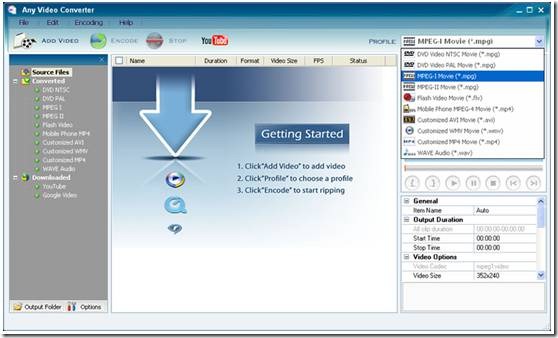
Any Video Converter Free is a personal favorite of mine because it excellently blends functionality with an appealing user interface. A wide variety of media formats are supported and converting video for your iOS device will be very easy. You can control advanced conversions options as well such as video and audio bitrates.

Quick Media Converter

clip_image008
Quick Media Converter comes in the setup size of 28MB. Along with supporting video conversions between various file formats, it provides a progress bar with each conversion process so you know how much of the process has completed and how much is left.
Format Factory

clip_image010
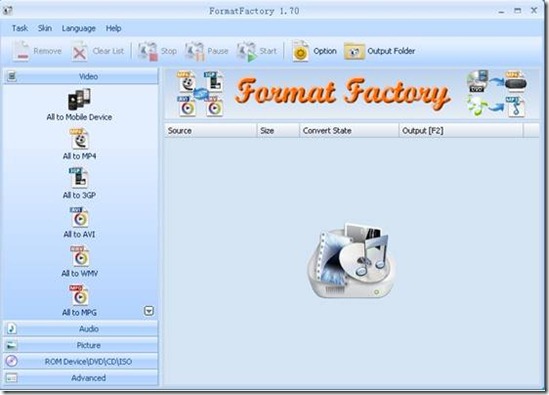
Although Format Factory does not offer the prettiest user interface, it does offer the most functionality out of the other entries in this list. Supporting media conversions between various video, audio, and image formats, Format Factory can quite easily become your default media conversion application. The program has a setup file size of 38MB.

Tuesday, October 26, 2010

VLC hits Apple iPhone, iPod touch

vlc iphone VLC hits Apple iPhone, iPod touch

The Apple iPhone and iPod touch are great multimedia players on the go if you live in the iTunes ecosystem but many of us have a ton of videos which have to be converted to play of Apple’s mobile devices. The new VLC Media Player for the iPhone and iPod touch now enables you to play a variety of video files on the go.

The VLC Media Player is already on the Apple iPad and the new app will bring much of that video-playing goodness to your iPhone or iPod touch. It’s not quite as simple as just dragging and dropping movies and television shows through iTunes but it’s relatively easy to do.

First, you have to download the free app on to your device (download here) and then you connect your iPhone or iPod touch to your computer. This should launch iTunes and then you select your device.

In the “Apps” tab, you have to click on the VLC icon under the “File Sharing” portion. You can then drag and drop nearly any video file you want onto “VLC Documents” and you’re off to the races.

Despite the few hoops you have to jump through, the media player is a great way to get multiple videos on your Apple device. Let us know what you think of the app in the comments below.

Thursday, January 21, 2010

The Power User's Guide to Video Encoding with Handbrake

maximumpc.com Whether you own an iPod touch, Zune HD, Nintendo DSi, or any number of other portable devices, there's one tool that makes easy work out of ripping DVDs and converting incompatible video files into manageable formats: Handbrake. This wonderful utility has just about everything you could ask for.
Click here for this full article on : The Power User's Guide to Video Encoding with Handbrake
 

Friday, November 6, 2009

How to Rip Video from Facebook

from: http://www.zeropaid.com/

  • Written by soulxtc


Easy-to-use guide will show you how to rip, download, and convert video from Facebook or simply embed on other websites.

Many times we see a video uploaded by a friend or family member to Facebook and would love to be able to embed it elsewhere or to simply download a copy to save for personal use.

Facebook obviously doesn’t offer either of these options and so people have to figure out a way to do it on their own.

The easiest method I’ve come across so far is by using a Firefox add-on called Facebook Video 2.1.8, and with it I’ll show you step by step how to get started downloading video from Facebook in no time at all.

STEP #1

Firstly, you must use Mozilla’s Firefox Internet browser.

STEP #2

Secondly, install the Facbook Video 2.1.8 add-on for Firefox.

STEP #3

Now find a video you want to work with. We’ll go over the three options which are to embed, download, or convert to other formats.

Notice the options available before installing Facebook Video 2.1.8.

Download Install Mozilla's Firefox Internet Browser

Now notice those available afterwards.

facebookvideo2ab

Embedding and Customizing Video

If you want to embed the video on a another website simply select the “Embed this Video” link on the right and then copy and past the code wherever you choose. Note that you can also customize this code by selecting the “Customize Code” link and entering desired width and length dimensions.

facebookvideo3

Downloading Video

Select the “Download Video” link. The video will then open up as an .mp4 object, filling the window in its entirety. Now select “Save Page As” from the File tab in the Firefox menu and choose where you want to save it on your PC.

facebookvideo4ab

Converting Video

To convert the video to another format select “Convert Video.” You’ll be taken to the Zamzar free file conversion website where you can then choose the format you want to convert it to: 3gp, .avi, iPhone, .flv, .wmv, or even .flac, .mp3, or .wav if you just want the audio from the video. Enter the email address of where you want to receive the converted file and press “Convert” to complete the process.

Tuesday, November 25, 2008

Complete Guide to Playing Video Files On PS3, Xbox 360, Wii


gizmodo.com —If you're here reading Gizmodo, there's a good chance you have a hard drive full of video somewhere. And you also probably have a PS3, Xbox 360 or Wii. If those two things aren't working together for you in beautiful symbiosis, allowing you to watch all of your downloaded or ripped video on your TV instead of hunched over a laptop screen, well, this is the guide for you....................


Click here for the whole article and step by step instructions.

Friday, November 21, 2008

Every Video Format You Need to Know


Once upon time, video codecs and formats were really only the concern of AV nerds, anime freaks and hardcore not-so-legal movie downloaders. Now, even the most part-time of geeks has to deal with them, whether they're trying to stream a flick across their house with an Apple TV, dump some video onto their phone or just trying to grab last night's episode of Dexter because they, uh, forgot to renew their Showtime subscription. It's messy and annoying, but we're here to clean it up. Take a deep breath.

You might recall our discussion about video bitrates earlier, or how much data is packed into a file. As a general rule, more bits per second translates into more betterer quality audio and video. The variable in that—the other part of the equation—is how the content is compressed and de-compressed. Better compression techniques—the zen of knowing what bits of data to pull out to make big data chunks smaller—make for better quality video while taking up less space on your hard drive. Basically, the part you need to know is that codecs are the software that make that magic happen.

Standard Standards
H.261 is not a term you have to worry about, but it's the technology that most video standards and codecs were originally based on. Originating in 1990, it's the first major digital video compression standard, and like other "H" standards, it was developed by the International Telecommunication Union. This one was primarily for teleconferencing over ISDN lines, and as such, it looks like ass.

MPEG-1 Part 2 is another oldie, developed by the Movie Picture Experts Group and approved in 1991. (BTW, the whole "part" thing is because video is just one "part" of each MPEG standard.) Based quite a bit on H.261, MPEG-1 was designed to take VHS quality video and squeeze it down to a bit rate of about 1.5Mbps, optimized for CD transfers. No surprise, it's the standard used for all VCDs (which can play in most DVD players), but not a standard you would see hanging around today.

• With MPEG-2 Part 2, approved in 1994, we're finally talking decent vid. Also known as H.262, since it was developed jointly by the ITU-T and ISO, MPEG-2 is an extension of MPEG-1 that delivers better resolution and higher bit rates (3-15Mbps for standard def and 15-30Mbps for HD). It's the video codec used by DVD and digital television, though now it's slowly being replaced by the more efficient MPEG-4, except on DVDs, where it'll ride out that disc format's lifetime.

H.263 is designed for sending video over crappy connections. So it's used to encode most Flash video and to send video over mobile networks.

MPEG-4 is where we really stand right now. It has a much broader scope than past MPEG standards, aiming to tackle both the low end (crappy cellphones on a crappy network) and the high end (Blu-ray). It's still developing, so it's not-so-coincidentally where this whole story gets messier. There are two relevant parts of the MPEG-4 standard for our myopic video purposes: Part 2 and Part 10—which is also known as H.264 or Advanced Video Coding (AVC). To be clear though, even though they're both part of the MPEG-4 standard, they're totally different formats. Nevertheless, both are more efficient at compression than past MPEG codecs, delivering better quality using less space.

• Okay, so if you've ever frequented a Torrent site, you've actually watched tons of videos that use MPEG-4 Part 2, though it's not like they would've had a flashing sign telling you so. MPEG-4 Part 2 actually has different "profiles"—the two that matter being Simple Profile, for low bitrate, low-res stuff, and Advanced Simple Profile. The latter profile is what's used by movies you would download in formats like DivX or XviD or 3ivx—which are all codecs that are essentially just differing implementations of the MPEG-4 Part 2 standard.

MPEG-4 Part 10, the other part, was actually co-devopled by MPEG and the ITU-T, so it's also known—in fact, more commonly known—as H.264. It's more efficient than MPEG-2 and MPEG-4 Part 2, delivering the same quality video in as little as half the space, making it suitable for the low and high-end. Because of this, it's quickly becoming the standardest standard. It's part of the HD DVD and Blu-ray spec, replacing MPEG-2 in digital TV (like with satellite services and AT&T's U-Verse IPTV) and supported by pretty much every portable video player on the planet from the iPod to the PSP. Apple has a decent, if Kool-Aid flavored, FAQ about H.264.

VC-1 is essentially a Microsoft developed alternative video codec to H.264 released as a standard by the Society of Motion Picture and Television Engineers, though it descends from the same H.26X/MPEG family. (It essentially started life as WMV9, but then Microsoft shopped it to the SMPTE to make it an industry standard, and now it is.) It too, is part of the mandatory Blu-ray and HD DVD spec, and is the official video codec of the Xbox 360. It's pitch is the same as H.264's—trying to deliver better quality using less space, like HD video in 6-8Mbps.

Free-Floating Codecs
Okay, so all that stuff up there are industry-wide standard video codecs. On top of all of those, various entities love putting out their own spin on those standards. As we mentioned before, DivX (proprietary) and XviD (open source), for instance, use MPEG-4 Part 2 (more specifically, MPEG-4 ASP) compression, meaning stuff that'll natively play back MPEG-4 ASP will also play back DivX. Like the Xbox 360, for instance. There are a ton of MPEG-4 ASP-based codecs, actually, like FFmpeg, 3ivx and others, but DivX and XviD are the most common. Same deal with H.264: Some well known codecs that use it are Apple's Quicktime H.264, x264 and Nero Digital. You've also got Windows Media Video (WMV) codecs, which are Microsoft's proprietary twists on industry standards.

Containers aka Wrappers
Alright, well you've probably noticed that none of your video files have the extension .h264 or .vc1 or the like. That's because videos are packaged in containers or wrappers that stuff things like the audio, navigational info, etc. along with the video in a single pretty file. Naturally, there are about as many of them as there are codecs. To be clear, you would take a video encoded with, say, H.264, and wrap it up as a .mp4 or .avi file.

The majors ones are:
• AVI (Audio Video Interleave) is Windows' standard multimedia container
• MPEG-4 Part 14 (known to you as .mp4) is the standardized container for MPEG-4
• FLV (Flash Video) is the format used to deliver MPEG video through Flash Player
• MOV is Apple's QuickTime container format
• OGG, OGM and OGV are open-standard containers
• MKV (Mastroska) is another open-specification container that you've seen if you've ever downloaded anime
• VOB means DVD Video Object. Guess what? It's DVD's standard container, and what you get when you rip a DVD.
• ASF is a Microsoft format designed for WMV and WMA—files can end in .wmv or .asf

So, in order to play a video file, your setup has to be able to handle both the actual video codec and the container. It's why you can try to play an AVI file and Windows Media Player laughs at you, even though it totally played one a minute ago— the container was no problem, but it didn't have the right codec. Or conversely, even though an iPod could play back an H.264 encoded video, if it was wrapped up in MKV, it won't be able to read it.

Okay, my brain hurts. Hopefully this will make yours hurt less when it comes to dealing with pesky videos. If you'd like to do even more homework, Wikipedia, as always, has a more in-depth discussion. And Doom9 is always an amazing resource for all things digital video.

Something you still wanna know? Send any questions about codecs, kitties or pad thai (but not RealMedia) to tips@gizmodo.com, with "Giz Explains" in the subject line.

[Image: ME@Flickr]