LaCie XtremKey: One of those extreme can-take-it-all USB keys that you can run over, boil, roast in the oven, drop in water, freeze, and sledgehammer—then eat it and poop it out. According to the video, it'll keep working.
The LaCie XtremKey can work 333 feet underwater. Its temperature operating range goes from -58ºF to 392ºF, and it can transfer data at 40Mb/s. The USB key is made of zamac, "a metal alloy composed of zinc, aluminum, magnesium and copper that's so strong, it can withstand the pressure of a 10-ton truck." With a name like zamac, nothing can go wrong unless Ultron steals it or buys it for $50.
Send an email to Jesus Diaz, the author of this post, at jesus@gizmodo.com.
For several years I've been fascinated by what might be called the geological nature of harddrives – how certain mineral arrangements of metal and ferromagnetism result in our technological ability to store memories, save information, and leave previous versions of the present behind. A harddrive, though, would be a geological object as much as a technical one; it is a content-rich, heavily processed re-configuration of the earth's surface.
[Image: Geometry in the sky. "Diagram showing conceptual photographs of how satellite versus star background would appear from three different locations on the surface of the earth," courtesy of the Office of NOAA Corps Operations (ONCO)].
This reminds me of another ongoing fantasy of mine, which is that perhaps someday we won't actually need harddrives at all: we'll simply use geology itself. In other words, what if we could manipulate the earth's own magnetic field and thus program data into the natural energy curtains of the planet? The earth would become a kind of spherical harddrive, with information stored in those moving webs of magnetic energy that both surround and penetrate its surface. This extends yet further into an idea that perhaps whole planets out there, turning in space, are actually the harddrives of an intelligent species we otherwise have yet to encounter – like mnemonic Death Stars, they are spherical data-storage facilities made of content-rich bedrock – or, perhaps more interestingly, we might even yet discover, in some weird version of the future directed by James Cameron from a screenplay by Jules Verne, that the earth itself is already encoded with someone else's data, and that, down there in crustal formations of rock, crystalline archives shimmer. I'm reminded of a line from William S. Burroughs's novel The Ticket That Exploded, in which we read that beneath all of this, hidden in the surface of the earth, is "a vast mineral consciousness near absolute zero thinking in slow formations of crystal."
In any case, this all came to mind again last night when I saw an article in New Scientist about how 3D holograms might revolutionize data storage. One hologram-encoded DVD, for instance, could hold an incredible 1000GB of information. So how would these 3D holograms be formed? "A pair of laser beams is used to write data into discs of light-sensitive plastic, with both aiming at the same spot," the article explains. "One beam shines continuously, while the other pulses on and off to encode patches that represent digital 0s and 1s." The question, then, would be whether or not you could build a geotechnical version of this, some vast and slow-moving machine – manufactured by Komatsu – that moves over exposed faces of bedrock and "encodes" that geological formation with data. You would use it to inscribe information into the planet. To use a cheap pun, you could store terrabytes of information. But it'd be like some new form of plowing in which the furrows you produce are not for seeds but for data. An entirely new landscape design process results: a fragment of the earth formatted to store encrypted files. Data gardens. They can even be read by satellite.
Like something out of H.P. Lovecraft – or the most unhinged imaginations of early European explorers – future humans will look down uneasily at the earth they walk upon, knowing that vast holograms span that rocky darkness, spun like inexplicable cobwebs through the planet. Beneath a massive stretch of rock in the remotest state-owned corner of Nevada, top secret government holograms await their future decryption. The planet thus becomes an archive.
One of the most annoying things about owning a computer is the maintenance. It’s easily neglected. After all you don’t really notice the slow decline of your system’s performance, do you?
But then again it’s a delight to work on a freshly installed machine, where everything is smooth and responds quickly. But customization is tedious. And when your hard drive decides to break spontaneously, time is something you won’t have for sure.
For emergencies it’s better you have a data and a system backup available. Here are the 5 best tools to clone or copy your hard drive in no particular order.
This software is the easy solution. It’s comfortable to use with a sleek interface that guides you through the whole process of backing up and restoring step by step. And while a backup is running in the background you can even proceed using your system.
Both Drive Backup Express and DriveImage XML (described below) require a bootable CD, which the user has to create independently.
I have previously written about Drive Backup Express and thoroughly explained how it works here.
In contrast to Drive Backup Express, DriveImage XML is a visually very basic tool. However, it reliably creates images of logical drives and partitions and restores these to either the originating or a different hard disk.
Like Drive Backup Express, DriveImage XML applies a cloning technique that allows parallel use of the system while the backup is running. It can also do incremental backups, supplementing existing backups with what was changed in the meantime. Additionally, images can be restored without having to reboot.
CloneZilla is an open source and cross platform tool to clone and restore hard drives.
It’s a tough tool for non nerds as it requires some background knowledge. First of all it’s not a software you install on your computer. You download CloneZilla in form of an ISO image or ZIP file and burn the image to a CD or load the files onto a USB flash drive or hard drive.
The next step is to reboot the computer from that medium you created, which may require going into the BIOS and allow booting from a CD or USB device.
Once the tool is running, it’s easy to use the simple interface to initiate or restore a backup. There also is sort of a screenshot walkthrough on the CloneZilla homepage, where you can view some of the options before running the tool.
XXCLONE is Windows software. The tool can create a self-bootable clone of a Windows drive as well as full backups of non-system volumes.
The interface is basic and clear. When started, the tool scans for available volumes and you can then choose a source and target volume from these. A direct link to the Windows Disk Management is provided through the “diskmgmt” button. Under the “Tool Cools” tab you can make use of options such as making the target volume self-bootable, manage restore points or create a batch file to save your current settings for future re-use.
The download section of the website provides a thorough help file that contains screenshots and descriptions of all features.
EASEUS Disk Copy creates sector by sector clones of partitions or hard disks, independent of operating system, file systems or partition scheme. It’s a versatile tool for both the novice and experienced user.
Just like CoolZilla, it’s not installed locally, rather the ISO image is burned to a bootable CD or DVD.
The website is probably the best of all tools described here. The information is thorough and very clear, including a very detailed help section that will walk you through every aspect of the program.
Do you clone and copy your hard drive? If so, which program do you use? Can you recommend any particular program to us? Let us know in the comments.
Some say that the end of the trusty hard drive is near, killed by SSD. But let's not be so quick to give up on a technology that stores a whole terabyte for $100.
It'll be years before solid-state flash-memory disks (in this case usually referred to as SSDs) let us cheaply bank the same amounts of data as trusty old hard disk drives for a reasonable price. So, you might as well know how they work, 'cause honestly, they'll have a place on or next to your desk holding all the crap that won't fit on daintier solid state drives—HD movies, huge pictures, music and who knows what else if you're Jason Chen.
What Goes on Inside The reason hard drive is abbreviated as HDD is that it's really a hard disk drive. Inside you've got what's called a "platter," which is a magnetized recording surface that spins around really really fast, with a head that zooms across the disk to read and write data, think kinda like a record player, except that the head never actually touches the disk except, as you will see below, when bad things happen. [Image via Wikipedia]
Hard drives also come in a few different sizes, with 1.8", 2.5" and 3.5" being the most common, but they've been bigger (and smaller). 3.5" is for desktops, 2.5" is for notebooks (or obsessively quiet desktops), and 1.8" is what goes in classic iPods, MacBook Airs and other small portable devices.
The more platters a drive has, the more data it can hold, but most advances in storage have focused on increasing storage density. A really high-capacity drive can have four platters, while many 3.5" desktop models and some elite laptop 2.5" drives have three platters. Most laptop drives and all the 1.8" portable-device drives that we know of are limited to two platters.
The real catalyst for those 1TB and 1.5TB monster drives pooped out by Hitachi and Seagate wasn't platter stacking, though. It was perpendicular magnetic recording, which allows for triple storage density by storing data vertically (or perpendicularly) along the platter's recording layer, rather than spreading it out across it horizontally (parallel-ly?). However, data is more fragile and susceptible to erasure when stored vertically, hence the slow creep in precision allowing for greater storage densities and capacities.
What All Those Numbers and Letters Mean You might've noticed hard drives are often labeled as IDE or SATA or PATA or PITA (kidding), with specs like 5400RPM or 7200RPM, plus they come in various sizes, like 1.8, 2.5 or 3.5-inches. Confusing, no? So here's all that crap means.
RPM means the same thing it does in cars, rotations revolutions per minute. In hard drives it's important because the faster the disk spins, the faster it can read and write data. 7200RPM is the standard for desktop drives, but performance models run at 10,000RPM or 15,000RPM. Notebook drives typically run at 5400RPM, because they're smaller, but recently, you can order them with 7200RPM to get more performance at the cost of battery life.
A higher RPM is the single greatest performance variable, since the faster it spins, the more data it can read or write within whatever time frame—it also makes access faster, since the head doesn't have to wait as long to pass over the right data once it's moved to the right spot. And a faster (lower) seek time, basically, refers to how long it takes for the drive to move its head where it needs to go to read or write data. High end drives have a seek time of just 2ms, while typical consumer drives are close to 9ms. Also, the higher the buffer—most typically 8, 16 or 32MB—the more data it can pre-cache, though Tom's Hardware found that you getdiminishing returns there.
How They Connect The various kinds of drives essentially refers to how it interfaces or connects with your computer's motherboard. There are a bunch, but only a few worth knowing. Up until the last few years, the dominant standard was ATA, or Advanced Technology Attachment. Once SATA, or serial ATA, came onto the map (more on that in a sec), regular ATA picked up the alternative name parallel ATA.
Further revisions to the ATA spec allowed for hard drives with greater storage and faster transfer speeds, and you might see drives using the later spec revisions called "Ultra ATA" or something similar, and they can transfer data at 133MBps (which is slooooow). ATA drives are commonly called IDE (integrated drive electronics), but ATA is more precise. If you've ever messed around inside a computer, you'd recognize them because they connected to fatass ribbon cables that take up a lot of room. The third major interface, which you should know of, but not necessarily about, is SCSI (pronounced "scuzzy"), which was primarily used in the enterprise or high-end space when ATA was still king. The ATA/IDE interface also confused some with its master/slave assignations, which, as you'll see, is no longer a problem.
Okay, so the current hard drive standard in consumer PCs as of a few years ago is SATA, which is worlds better than ATA. For one, it's faster—first-gen devices ran at 1.5Gbps, but now they're up to 3Gbps, and are on the road to hitting 6Gbps. Also, their cables are way thinner, for better air flow and less tangly crap inside your case. And because they're smarter and don't depend on a lot of configuration, they're easy to work with, and are even hot-swappable. Newer external drives use a variant of SATA, eSATA (e for external) that essentially just moves the port to the outside of the computer case, delivering SATA speed for peripherals. Soon, eSATA will come in a bus-powered format, much like the smaller portable USB drives you see today.
Fast seek times are different than fast transfer times from a good interface—one pertains to how quickly the data can be located on the disk, and the other is how fast it can be sent over. To describe it in somewhat oversimplified terms, you can see how a slow interface on a fast seek drive would be better for a system that's constantly shifting tiny bits of data, where a fast interface on a relatively slower drive is good for moving really large files around.
Why They Die Remember how I said the head usually never touches the drive's platter surface? When the head actually does touch the drive platter, it's what's called a head crash (check out the video above), and it means you're skee-rewed. Normally the head flies on a tiny pocket of air, but a single particle can make the head bounce on the disk, totally hosing the magnetic layer, especially at higher RPMs. And it just gets worse from there, because stuff scraped away by a head crash making it more likely that more head crashes will happen. More mundanely, the delicate mechanical parts eventually just wear out over time, which is typically measured by the the drive's rated mean time between failures. Unfortunately, there's not a whole lot you can do to predict when your drive is gonna go down in flames, unless you bought a drive from a series suffering manufacturing defects.
So what is really the single most important thing you should know about hard drives? Back your crap up, they may be awesome, but that doesn't mean they're without weakness.
Something you still wanna know? Send any questions about drives, personal storage or other hard things to tips@gizmodo.com, with "Giz Explains" in the subject line.
.
All you art collectors out there. Here is a chance to get a Giclee copy of some of Ian M Sherwin work. Ian is planning on doing a whole series of Marblehead, Massachusetts paintings. His work is amazing.


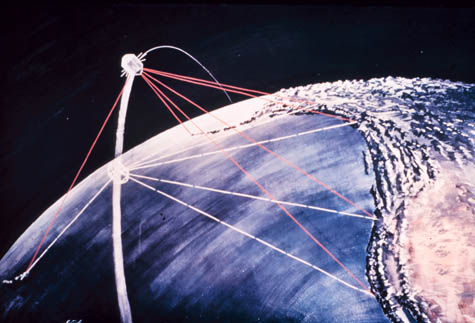 [Image: "
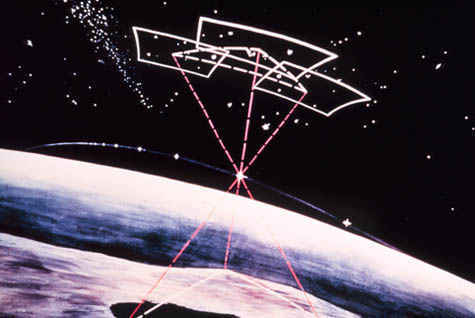 [Image: Geometry in the sky. "Diagram showing conceptual photographs of how
  [Image: "
 [Image: The "
 One of the most annoying things about owning a computer is the maintenance. It’s easily neglected. After all you don’t really notice the slow decline of your system’s performance, do you?
 In contrast to Drive Backup Express, DriveImage XML is a visually very basic tool. However, it reliably creates images of logical drives and partitions and restores these to either the originating or a different hard disk.
 CloneZilla is an open source and cross platform tool to clone and restore hard drives.
 XXCLONE is Windows software. The tool can create a self-bootable clone of a Windows drive as well as full backups of non-system volumes.
 EASEUS Disk Copy creates sector by sector clones of partitions or hard disks, independent of operating system, file systems or partition scheme. It’s a versatile tool for both the novice and experienced user.
 What Goes on Inside
 How They Connect
 Why They Die
 .
.

 Posts
Posts


