Zazzle Shop

Screen printing
Showing posts with label PC components. Show all posts

Tuesday, April 26, 2011

The Techie Dorm Room: Then and Now

Posted by: Connor Livingston
From: http://topcultured.com/

Revenge of the Nerds

Let’s face it. Geeks are cool. It isn’t that the people became cooler, but rather that technology has allowed it to where someone doesn’t have to have pocket protectors and an IQ in the 150s to be classified as a geek. The techies of the modern age are geeks based upon interest rather than uncoolness.

The “modern era” of techies really started in the 1990s when availability of personal computers, third generation gaming systems, and gadgets galore started creeping into everyone’s dorm room, not just those who looked like the cast of “Revenge of the Nerds.”

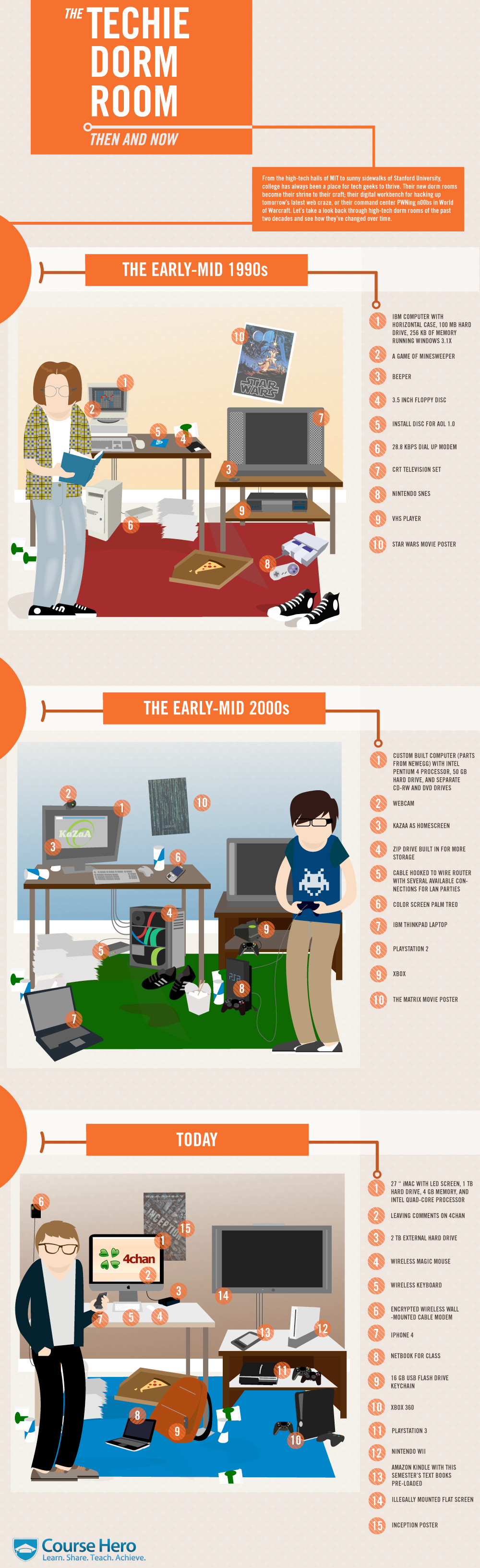
This graphic depicts the evolution of the techie dorm room over the last 2 decades. My, how times have changed.

Click to enlarge.

Techie Dorm Room

Thursday, February 17, 2011

Build your own Home Theater PC (HTPC) ... for under $600!

By Adrian Kingsley-Hughes

Adrian also runs a popular blog under the name The PC Doctor, where he covers a range of computer-related topics -- from security to repairing and upgrading.

Over the past few weeks I’ve had dozens of requests from readers wanting me to put together a parts list for a kick-ass, low-cost Home Theater PC (HTPC). Well, here you go!
Before I go on, first let me explain briefly what a HTPC is and how it differs from a regular PC. Basically, an HTPC (sometimes called a Media PC or Media Center) is a PC that’s specifically designed to playback music and video. Also, since it’s an entertainment system, you want to be able to control the PC remotely, and you want to keep noise down to a minimum.

What I’m going to outline here is an entry-level system that’s going to be able to handle all the basic tasks that you’d expect of an HTPC system. It’s going to be able to handle HD resolution video (1080p and 720p), cope with streaming video, upscale DVD, ad will even be good for playing games, as long as you’re not too greedy when it comes to resolution. It’s also going to have plenty of storage space so you’ve got plenty of room to store your ever-growing library of media.
OK, let’s get going!

Processor
One of the key factors to building a successful HTPC is to pick a processor that’s powerful enough to handle the demands placed on it by the tasks it has to carry out, but not so powerful that you’re having to add powerful fans to have to cool the thing off.
For this built I’ve chosen an AMD Athlon II X2 255 Socket AM3 part. This is a 3.1GHz dual-core CPU, but far more importantly than that, it has a TDP of only 65W. This means less heat is produced when it’s running, which in turn means less cooling, and it also means you can cram more components into a smaller chassis.
Price: $80

Motherboard
Now that we’ve chosen the CPU, it’s now time to choose a motherboard to match it. There are several consideration to take into account.
First, size. Ideally, you want your HTPC to have a smallish footprint, along the lines of a VCR, so it’s best to choose one with a micro-ATX form factor. Also, it’s a good idea for the motherboard to have an on-board graphics processor (GPU) and support for HDMI. Oh, and to match the processor, this needs to be a Socket AM3 board.
With all these requirements in mind, I’ve chosen a Gigabyte GA-MA785GMT-UD2H board. Highlights of this board include:
  • AMD 785G chipset
  • ATI Radeon HD 4200 GPU
  • HDMI
  • SATA support
Price: $90

Memory
Nothing special here, since the demands on the RAM aren’t that great. We need DDR3 for the motherboard, and a pair of 1GB sticks are ample for an HTPC.
Shop around for a good deal.
Price: around $40

Hard drive
What you want here is a drive that offers ample storage (take what you think you’ll need and double it!), is quiet and energy-efficient.
The drive I’m going to go for is a Western Digital GreenPower drive, because there are energy-efficient, quiet, designed for streaming audio and video, and are able too cope with being shut away in a small hot metal box with other components. I’m pushing the boat out here and going for a 1.5TB drive (AV-GP WD15EVDS). If you want to spend more, go for the 2TB drive, if you want to spend less, go with a smaller capacity … dial it in to suit your needs.
Price: $120

Optical drive
Lots of choices here, but the main question is whether you want a DVD drive or one that can play Blu-ray discs too. DVD drives start at around $20, while Blu-ray drives start at $100, so I’m going to opt for an entry-level Blu-ray drive - the LG black 8X BD-ROM 16X DVD-ROM 40X CD-ROM SATA internal combo that’ll handle pretty much any disc you throw at it.
Price: $100

Chassis/Power Supply Unit
OK, you’re building an HTPC here, not a desktop system, so you don’t really want it to look like a desktop PC. You need a chassis that’s designed specifically for HTPC. Fortunately, there are loads to choose from. The downside is that prices vary wildly.
Oh, you also need a Power Supply Unit (PSU) for the HTPC …
I’m going to make life easier for you here by picking a decent chassis that comes complete with a PSU … the Antec Black M FusionRemote 350 Micro ATX. Not only is this a good chassis, and comes with a nice PSU, it also comes with an IR receiver and remote control so you can operate your HTPC from your couch!
Price: $90

Keyboard/Mouse
You will want a wireless keyboard and mouse combo to control your HTPC. I’d go with something cheap from the Logitech range unless you want a specific feature/
Price: $50

Price (without Operating System): $590

OK, what about the Operating System?
Yes, your HTPC will need an operating system. You have choices available to you (for example, if you’re comfortable with Linux, you can take that route), but most people are likely to want Windows 7 on their HTPCs, and you can pick up an OEM copy of Windows 7 Home Premium for around $105.
Price (with Operating System): $695!!!


Friday, January 14, 2011

Computer History Museum's Stunning Exhibit [Slideshow]

pcmag.com — This Thursday, the Computer History Museum in Mountain View will unveil "R:Evolution," a $19 million renovation focusing on the first 2,000 years of computing. And it's amazing.

Great Gallery here:  http://www.pcmag.com/

Thursday, June 10, 2010

Apple's iPhone 4: What Buyers Need to Know

By: Chloe Albanesius
From: http://www.pcmag.com/

Apple's iPhone 4 is now official and will be in stores on June 24. Are video calling, a front-facing camera, and the iBooks app enough to make you buy one? If you're on the fence, or trying to figure out if you can afford to invest in Apple's latest gizmo, here's what you need to know about making the switch.

For more information and details of the new iPhone 4, check out our report of the launch of the Apple iPhone 4 as well as our hands on with the Apple iPhone 4.

How much will the iPhone 4 cost me?
The iPhone 4 will be offered in a 16 G-byte version and a 32GB version. For new and "upgrade eligible" customers who sign a two-year contract with AT&T, the 16-GB version will cost $199 and the 32-GB version will retail for $299.

Upgrades? I can't just buy a new iPhone 4?
In general, AT&T iPhone customers who spend more than $99 per month per line are eligible for an upgrade when they are between 12 and 18 months into their contract, so that AT&T doesn't lose money on the older iPhone model it has already subsidized. You're not locked out of a new iPhone, but if you do make the switch before your upgrade date, you'll pay $100 more than a new iPhone customer.

The good news is that Steve Jobs announced Monday that AT&T will subsidize iPhone customers upgrading to the iPhone 4 up to six months earlier than their current upgrade date. Now, if your upgrade date occurs before the end of 2010, you can buy the new iPhone 4 for $199 or $299.

How do I know if I'm "upgrade eligible"?
Check your status at att.com/iphone or dial *639#.

I'm not eligible. Boo. How much will the iPhone 4 cost me?
If you opt for an "early upgrade," the 16GB will cost $399 and the 32GB will sell for $499.

Any options if I don't want to deal with a two-year AT&T contract?
If you're not jazzed at the prospect of a two-year commitment to AT&T, the 16GB iPhone 4 will cost $599 and the 32GB will retail for $699.

What type of data plans are offered for the iPhone 4?
If you are switching from another carrier or upgrading to a smartphone, AT&T will offer its new tiered data plan. DataPlus will provide 200MB for $15 per month, while DataPro will allow up to 2GB per month for $25. For more information on AT&T's new plan, check out PCMag's guide.

If I already have AT&T, do I need to switch to a tiered data plan?
No. If you are an existing AT&T smartphone user, you don't need to switch to a new plan. You might want to ask specifically about this when talking with AT&T, however. I have a BlackBerry through AT&T, and I called on Monday afternoon to see if my bill would change at all if I upgraded to an iPhone 4 later this month. The customer service rep quoted me the new tiered data plans – 200MB for $15 or $25 for 2GB. When I pointed out that AT&T's iPhone 4 press release said that existing smartphone customers do not have to switch to a new plan, the rep said I was correct and could keep my plan. Granted it's the first day these reps are dealing with iPhone 4 questions, but when it comes to unlimited vs. tiered, I want my unlimited plan.

Any other charges?
Customers with an iPhone 4, iPhone 3GS, or iPhone 3G can add tethering for an extra $20 per month. If you're on a family plan, you can add another line starting at $24.99.

When can I get it?
The iPhone 4 will be available in Apple and AT&T retail stores on June 24. Customers can start pre-ordering the devices on June 15 on the AT&T and Apple Web sites.

The iPhone 4 is a bit pricey. Any deals on older models?
Yes, new and upgrade eligible customers can get the 8-GB version of the iPhone 3GS for $99 with a contract. Early upgraders will pay $299, and those who don't sign a two-year contract with AT&T can get the 8GB iPhone 3GS for $499.

Complete iPhone Coverage
http://go.pcmag.com/iphone

Friday, March 26, 2010

Close Up With The Coolest PC Case Ever, The Level 10

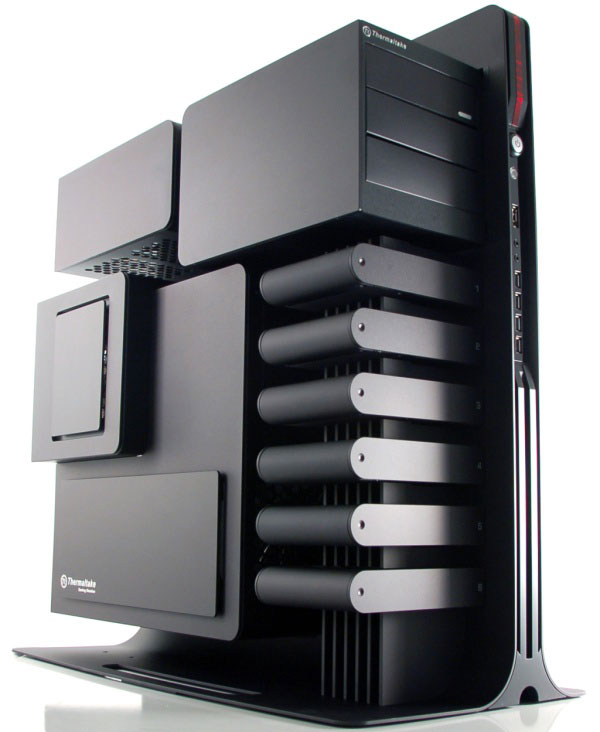
Computer cases tend to reveal certain things about their owners. With one glance, your friends can estimate just how serious (or casual) your computer hardware addiction may be. Whether the chassis is a generic, cream-colored throwback from the 90's, a standard mid-tower with a couple of LED fans, or an extravagant full-tower gaming behemoth with see-through side panels and custom graphics, first impressions unavoidably start with the enclosure.

Although the market is loaded with a myriad of attractive cases, one product from Thermaltake caught our attention from the moment we laid eyes on it and it has captivated us ever since. The Level 10 gaming tower is a new over-the-top enclosure made specifically for enthusiasts who want to make a statement without saying a word; or at the very least, appreciate cutting-edge design and absolute precision build quality. Of course, beauty is in the eye of the beholder, but few can deny the Level 10's eye-catching good looks and extraordinary construction. As you may have heard, this case was created by BMW Group Designworks USA for Thermaltake. The BMW Group designs new concepts for a variety of industries, such as yachts, trains, and aircraft. Let's check out its latest creation made specifically for gamers, to see if it's really as revolutionary and well-built as it looks...


Thermaltake Level 10 Enclosure
Specifications and Features

Model

Level 10

Type

ATX Full Tower

Color

Black

Material

Aluminum

Expansion

3 x External 5.25" Drive Bays
6 x Internal 3.5" or 2.5" Drive Bays
8 x Motherboard Expansion Slots

Front I/O Ports

4 x USB
1 x Audio
1 x eSATA

Cooling

2 x 60mm Drive Bay Fans
1 x 120mm Red LED Fan
1 x 140mm Red LED Fan

Physical Dimensions

24.17" x 12.52" x 26.22" (Length x Width x Height)

Weight

47.11 lbs

Warranty

3 Years Limited (parts / labor)

Price

$850


Click here for the full article and specs

Tuesday, March 2, 2010

Body acoustics can turn your arm into a touchscreen

Finding the keypad on your cellphone or music player a bit cramped? Maybe your forearm could be more accommodating. It could become part of a skin-based interface that effectively turns your body into a touchscreen.

Called Skinput, the system is a marriage of two technologies: the ability to detect the ultralow-frequency sound produced by tapping the skin with a finger, and the microchip-sized "pico" projectors now found in some cellphones.

The system beams a keyboard or menu onto the user's forearm and hand from a projector housed in an armband. An acoustic detector, also in the armband, then calculates which part of the display you want to activate.

But how does the system know which icon, button or finger you tapped? Chris Harrison at Carnegie Mellon University in Pittsburgh, Pennsylvania, working with Dan Morris and Desney Tan at Microsoft's research lab in Redmond, Washington, exploit the way our skin, musculature and skeleton combine to make distinctive sounds when we tap on different parts of the arm, palm, fingers and thumb (see video).

Bone machine

They have identified various locations on the forearm and hand that produce characteristic acoustic patterns when tapped. The acoustic detector in the armband contains five piezoelectric cantilevers, each weighted to respond to certain bands of sound frequencies. Different combinations of the sensors are activated to differing degrees depending on where the arm is tapped.

Twenty volunteers tested the system and most found it easy to navigate through icons on the forearm and tap fingers to actuate commands.

"Skinput works very well for a series of gestures, even when the body is in motion," the researchers say, with subjects able to deftly scroll through menus whether they moved up and down or flicked across their arm.

The system could use wireless technology like Bluetooth to transmit commands to many types of device – including phones, iPods and even PCs. The researchers will present their work in April at the ACM Computer-Human Interaction meeting in Atlanta, Georgia.

Body control

Pranav Mistry of the Media Lab at the Massachusetts Institute of Technology warns that users will have to position the armband very precisely so the projection always appears in the right place.

Nevertheless, Skinput looks a promising idea, says Michael Liebschner, director of the Bio-Innovations Lab at Baylor College of Medicine in Houston, Texas, who has worked on bone acoustic conduction technology for gadget-to-gadget transmission.

"This sounds a very feasible approach to using the body itself as an input device," he says. "When you are immersed in a virtual game using a head-mounted 3D display, you cannot just take it off to fiddle around with control buttons. This will make things much easier."

If you would like to reuse any content from New Scientist, either in print or online, please contact the syndication department first for permission. New Scientist does not own rights to photos, but there are a variety of licensing options available for use of articles and graphics we own the copyright to.

Have your say

Wednesday, August 19, 2009

Old PC Holding You Back?

Laptops are helping more people do more of what they love in more places around the world.

That’s what we learned while collecting stories and footage from the UC Berkeley campus, Malaysia and Rio de Janeiro, Brazil. We mixed those stories with data collected by Intel computer performance engineers.

In this video:

  • HD playing on a new vs. a three-year older laptop
  • Editing high quality video at home or even the beach
  • Recording and mixing music at home, a club or with other DJ live over the Internet
  • A college field hockey coach helping students become well rounded adults with the help of her laptop and digital video camera

Today, high quality HD video and television shows are being served up to computers from ever more Internet sites like Hulu, Disney, Fancast, TV.com, and the networks ABC, CBS and NBC. Not only are they all offering Internet HD video, many people (myself included and each of our Intel Insiders) are creating HD videos and uploading them to various video sites.

If you go to NASA’s site be prepared for an HD video experience. And it is not limited to watching. New laptops and desktops are empowering people to do things with rich media they could never do before. But if you got your PC three years ago, that would mean it was built in 2005, before the onslaught of online HD video and the rise of sites like YouTube and Facebook

Intel engineers put older and new computers to the test, and here’s what we learned:

  • Compared to most Intel-powered laptops from 2005, a newer laptop from 2009 powered by an Intel Core processor can help you do more things, faster
  • The 2009 laptop can multitask better and perform up to two times better,
  • play HD internet TV shows, and can convert photos into videos as much as three-times faster than the 2006 laptop

Here is a place to learn about the latest Intel consumer technologies being used by PC makers around the world. If you’re interested in the sources for the old vs. new computer comparisons, check out the Intel performance site.

My Anecdotal Home Tests

At home, I have one desktop that is four years old. It helped my wife get through her PH.D program at UC Berkeley. But for the past few months, she feared that the computer was on its last leg, about to croak. I saw her trying to surf and watch videos on FanCast, the Comcast landing page. It worked, but it was painful watching her move from one video to another and then move to searching on Google, even when connected to the fastest home service Comcast offers.

I checked, and my two year laptop doesn’t choke like our old desktop. One other proof point for me is that my one-year-old MacBook is way better at editing video, photos and multitasking than my two year-old laptop.

I’ve been buying computers since 1986, and I’ve always tried buying one that will last at least three or four years. My first computers seemed to last four or five year, especially with a little memory upgrade. It seems now computers are getting much better much faster, so around the third year, I notice my patience wearing thin as computer begins bogging down when I’m working several browser tabs and other applications running at the same time.

I have a few four year old laptops I keep around, but they’re my clunkers for the kids to play with — they’re slower and just not as trusted as my newer laptops.

On the other end, I actually look forward to turning on my 2008 MacBook and quickly diving into my video editing and social media sharing.

I have heard that something like 2 out of every 5 or 6 consumer computers being used by consumers today are three years old or older — “over the hill” and possibly holding back their owners from fully enjoying the media-rich experience that today’s Internet offers.

Maybe some of these older PC are considered collector items by their owners. Or they’re waiting for the right time to buy that right model with specific mix of technologies inside and out.

Friday, February 13, 2009

The First-Timer's Guide to Building a Computer from Scratch


If you've cracked open your PC before to install a new hard drive or TV capture card, but you've never built a whole new system from the ground up, it's not as difficult as you might think.

read more | digg story

Tuesday, December 30, 2008

Reinstall and Restore Your Windows PC in Eight Easy Steps

Lincoln Spector, PC World

Maybe your PC won't boot. Or it could be infected with some kind of persistent malware. Perhaps Windows puts up a Blue Screen of Death every time you type the word aardvark.

No matter what kind of trouble your computer is having, someone will probably tell you to reformat your hard drive, reinstall Windows and your applications, and then restore your documents, photos, and music from a backup.

That isn't always good advice--according to a 2004 Salon.com article, incompetent tech support people use it to get customers off the phone. But if nothing else fixes a problem that's impossible to live with, starting over from scratch may be the best solution.

Don't do it unless you've tried everything else, however. If your PC refuses to boot, see "Diagnose and Repair an Unbootable XP or Vista PC" and "Six Downloadable Boot Discs That Could Save Your PC" for better options. If Windows boots and then horribly misbehaves, check for malware, remove unneeded autoloaders, and update drivers. You might even consider cleaning the Registry.

If after all that you determine that you must wipe out and reinstall Windows, follow these seven steps to make the process as safe and painless as possible.

Step 1: Find and Know Your Restore Tool

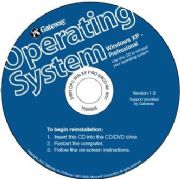
You need some sort of bootable environment that can restore or reinstall Windows--and you probably have one. PCs that ship with Windows all come with one of the following options.

Restore disc; click to view full-size imageA restore disc is a bootable CD or DVD that can restore your hard drive to the exact contents it had when the PC left the factory. In most cases the recovery disc will destroy all of your data--documents, photos, and so on--while "saving" your system. Some manufacturers don't actually ship a separate restore disc with your PC, but instead install software on the hard drive that you can use to create your own restore discs. If your PC came with a restore disc, but you can't locate it, see "How Do I Restore Windows If I've Lost My Restore CD?"

A restore partition lies hidden on the hard drive. You access it by pressing a particular key combination at boot time. Check your documentation to learn whether you have one and how to access it. The partition does the same thing as a restore disc does.

An actual Microsoft Windows CD or DVD is the best tool of them all, but unless you bought an upgrade to a newer version of Windows, you probably don't have one.

Step 2: Gather Everything Else You Need

Make sure you have all of the following before you take any action.

A driver backup: See "How Do I Back Up My Drivers?" for instructions.

Backup media and software: You'll want an external hard drive (or better yet, two of them), some blank DVDs, and backup software. I'll cover more details in Steps 3 and 4.

Your applications: For every program you use that didn't come with your PC, you need the CDs they came on, their serial numbers, their registration codes, and so on. If you downloaded an application, make a backup of the download file or check to be sure that you can easily download it again.

Time: In reality, this project will probably take only a few hours, but you want to leave yourself a day of wiggle room in the event that you can't locate an important driver or software disc. This project is best tackled at the start of a long holiday, or at least over a weekend, to avoid disrupting your business if something goes wrong.

A good book or some other diversion: You're going to spend a chunk of time in front of a nonworking PC. If the PC is a laptop, plop it down on the coffee table so that you can watch a little TV while the installers are running.

Step 3: Create an Image Backup of Your Hard Drive

In the unlikely event that something goes wrong (for instance, you forget to save a copy of an important presentation that you need for work on Monday), an image backup of your hard drive in its current state will let you quickly and easily restore everything to where it was before you started. Resist the temptation to skip this step, as it's your most reliable safety net.

What should you back up to? An external hard drive--they're fast, cheap, and easy to work with. For best results, pick one that's at least twice the size of all the data you have. If your 160GB hard drive has 90GB of data on it, a 200GB external drive will make a good choice. With 500GB and 1TB drives now readily available and reasonably priced, though, I suggest you go as big as you can afford; that way you can save more than one copy of your files to the drive, or even use it to back up multiple PCs.

And what software should you use? Ghost and TrueImage are the two best-known image-backup programs, but they aren't the only ones. Check your regular backup program (you do back up regularly, don't you?) for an image-backup feature, quite likely labeled Disaster Recovery. The backup software that came with your external drive might have something similar, too.

DriveImageXML; click to view full-size imageVista Business and Ultimate have built-in image backup. Click Start, type backup, select Backup Status and Configuration, and press Enter. Click Complete PC Backup, and then choose Create a backup now.

And, as usual, you have free options. I recommend Runtime Software's DriveImage XML.

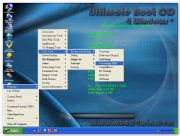
Ultimate Boot CD; cilck to view full-size imageRemember, though, that an image backup is useless if you can't boot from a CD or DVD to restore it. Both Ghost and TrueImage come with tools for creating just such a disc. If you opt to use Vista's Backup tool, make sure you have either a true Windows Vista DVD or the Vista Recovery Disc available for recovery purposes. You can recover a DriveImage XML backup via the Ultimate Boot CD for Windows.

Step 4: Make a Data Backup

Yes, I just had you create a backup of everything on your hard drive, including your data. But the purpose of that first backup was to add an extra layer of security. This second, data-only backup will make restoring your data, once you reinstall Windows, easier.

See "What's the Best Way to Back Up What I Need to Back Up?" for two lists (for XP and Vista) of Windows' data-holding folders. But don't worry about the software I recommend in that article--all you need to do right now is drag and copy those folders to a safe location.

As for what location, once again, an external hard drive does well. If you're really paranoid (as I am), you'll use a different external drive than you used for your image backup; it's safer than putting all your backups onto one hard drive. If you have only a few gigabytes of data files, burning them to DVD is a good, cheap solution.

Step 5: Reformat, Restore, and Recover

Now comes the main event. I can't really give you specific instructions for using your recovery tool, because I don't know what recovery tool you have. Just boot into it and follow the prompts. They're all designed to be as simple as possible.


Step 6: Make Windows Your Own

Congratulations. You now have a new version of Windows, configured exactly the way Microsoft and/or your system vendor like it (or, the way they liked it at the time you bought your PC).

Now you have to configure it, remove any preinstalled junk, install your own software, and generally make it yours all over again. This is, in my opinion, the longest and most annoying part of the job, and in Step 7 I'll tell you how to avoid it in the future. But for now, do the following.

a. In Control Panel's Users applet, create log-ons for yourself and any other users. You will need to have at least one Administrator-level user.

b. Remove bundled programs you don't want. I recommend the portable version of Revo Uninstaller for this job.

c. Restore your backed-up drivers. You can probably skip the drivers for anything that came with your PC, as your restore tool likely creates a version of Windows already set up with them.

d. Download and install any Windows updates.

e. Starting with your security software, install programs you use that didn't come with the PC. Update them, and then configure them to your liking.

f. Rearrange the Start menu as you wish.

g. Select your preferred wallpaper, screen saver, power settings, and so on.

Step 7: Create Another Image Backup

No, I'm not kidding. This step isn't strictly necessary, but if you ever need to restore Windows to this computer again, you can simply back up your personal data, restore this fresh and clean image backup, and then put your data back in its place.

Remember, the restore tool restores Microsoft's and your vendor's configuration of Windows, not yours. Think of this image as your own, customized restore tool, allowing you to skip Step 6 the next time around.

Because you have not yet copied your data back to the hard drive, this image will be relatively small. Put it on a series of writeable DVDs rather than an external drive, label them clearly with today's date, and safely store them away.

Step 8: The Final Touch

With Windows ready and recoverable, restore your data from the data backup with a few simple drags and drops. In the unlikely event that that backup has been damaged, restore it from the image backup. And keep both backups around for a month or so, just in case you missed an important file.

Finally, sigh, relax, treat yourself to something decadent, and get on with your life.

Friday, December 19, 2008

How to Build a Kick-ass $800 Gaming PC


In October, we spec’ed out a respectable $800 gaming PC in our monthly Buyer’s Guide feature. While the price and parts looked promising, we had to see for ourselves if this sub-$1000 system could hold its ground against today’s top rigs. After all, if you don’t need to spend your next month’s paycheck on performance parts, why should you?

We had to make some careful choices to keep this machine within our constrained budget, but in the end we were surprised by this little PC’s kick ass performance. Want to learn how to build it yourself? We’ll walk you through our meticulous build process, explain why we chose each component, and give you our final thoughts on the benchmark results this little-PC-that-could throws down.

Parts List:

Antec Three Hundred ($60, www.antec.com)

Intel Core 2 Duo E8400 3GHz Wolfdale ($165, www.intel.com)

Visiontek Radeon HD 4850 ($185, www.visiontek.com)

Seagate 500GB Barracuda ($65, www.seagate.com)

MSI P45 Neo3 ($110, www.msi.com.tw)

Samsung SH-S223F DVD Burner ($25, www.samsung.com)

Antec NeoPower 500 ($90, www.antec.com)

Corsair 2x1GB DDR2 800 ($40, www.corsair.com)

Let's get to building!


Thursday, November 13, 2008

25GB in 70 seconds with USB 3.0

At the Windows Hardware Engineering Conference (WinHEC) 2008, USB-IF President, Jeff Ravencraft revealed that the new specifications for USB 3.0 would be fully released on November 17 at the SuperSpeed USB Developers Conference in San Jose. The USB 3.0 architecture is also named SuperSpeed USB due to its incredible 5 gigabit per second (Gbps) data transfer speed.


SuperSpeed USB Standard-A connector SuperSpeed USB 3.0

Standard-A internal pins The USB 3.0 specification guarantees an increased performance of 10 times compared to the capabilities of the current USB 2.0, providing a bandwidth of 600 MB/s second. Devices employing USB 3.0 specifications are planned to be available to consumers in 2009 or 2010 and would be backwards compatible with USB 2.0 and USB 1.1.

“Delays have held USB 3.0 back,” said Lars Giusti of Microsoft. However, he predicts that the fully signed-off USB 3.0 specifications would only be presented to the implementers in the USB 3.0 Promoter Groups in 2009. Subsequently, it would take approximately another year until broad-scale product deployment of host controllers, devices, and systems utilizing USB 3.0 would be available in the market.

President and general manager of the chipset business unit at AMD, Phil Eisler, released a statement saying, "The future of computing and consumer devices is increasingly visual and bandwidth intensive. Lifestyles filled with HD media and digital audio demand quick and universal data transfer. USB 3.0 is an answer to the future bandwidth need of the PC platform.”

SuperSpeed USB Mini-B connector

SuperSpeed USB 3.0 Mini-B connector

Microsoft is currently in the planning stage of selecting which operating system to incorporate the USB 3.0 specifications into. “The Microsoft USB core team is currently evaluating which operating systems we should support USB 3.0 on. It's a difficult decision and a difficult choice because there are all these moving parts,” said Giusti.

“Our early indications tell us that most partners think that we should support USB 3.0 on at least Windows Vista.”

According to early information supplied by Microsoft the improvement in transferring large files using USB 3.0 based hardware will be considerable.

Performance comparison: Transfer of 25GB HD movie:

USB 1.1: 9.3 hours

USB 2.0: 13.9 minutes

USB 3.0: 70 seconds

SuperSpeed USB Standard-A connector
SuperSpeed USB 3.0 Standard-A connector
TFOT has previously looked at USB 3.0 in September 2007, predicting USB 3.0 to arrive in 2008. We have also written on the MultiSwitch, the first USB sharing hub, which is a new extension to USB that will enable sharing of various USB peripherals between computers and allows the sharing of information and content from devices such as DVD players, cameras, printers, and scanners between laptops and desktops using a simple USB cable. Other advanced data transfer technologies covered by TFOT include Georgia Electronic Design Center’s wireless technology, which demonstrates transfer rates of 15 gigabits per second (Gbps) at a distance of 1 meter, 10 Gbps at 2 meters, and 5 Gbps at 5 meters.

Additional information on USB 3.0 can be obtained at Intel’s website.